Compatibility checklist (Android, iPhone/iPad, PC)
“Plug-and-play” can be real for an endoscope camera, but only if your device can complete the whole connection chain: port/adapter → host mode (OTG) → UVC or compatible app/software → enough power. Use this checklist to get to a yes/no quickly.
Compatibility checklist (quick pass/fail)
- Your device port matches the camera output (USB-C / Lightning / USB-A) or you have the correct adapter for it.
- Android only: your phone/tablet supports USB OTG (host mode) and it’s enabled (some brands show a toggle, others don’t). (Background: Android USB host behavior and accessory handling varies by device and implementation.) Android USB docs
- The endoscope identifies as a USB video device (UVC) or the seller provides a specific supported app/software for your OS. (UVC is a standardized USB video class that improves interoperability.) USB-IF UVC document library
- When you plug it in, you see a USB/accessory permission prompt (Android) or accessory recognition (iOS/iPadOS) rather than nothing.
- You can get a live preview (not just “device detected”) in at least one viewer app/software.
- The camera stays connected for 60–120 seconds without random disconnects (power/adapter issues often show up quickly).
- You’re not trying to power a high-draw accessory through a weak adapter/hub—power limits matter on phones/tablets.
- For iPhone/iPad: you may need an adapter that supports data and power passthrough (many cheap adapters don’t). Reference example of the “camera adapter” concept: Apple Lightning to USB 3 Camera Adapter
What “works” means (preview vs recording vs stable connection)
If you’re testing compatibility, define success up front:
- Detected: the device shows up as a USB accessory/device.
- Usable preview: you see a live image with controllable brightness/LEDs.
- Stable session: it doesn’t drop connection when you move the cable.
- Recording (optional): video saves properly and doesn’t stutter excessively.
What “plug-and-play” really means (OTG vs UVC)
“Plug-and-play” is not one feature—it’s a relationship between your device and the camera. OTG is about whether your phone can act as the “host,” and UVC is about whether the camera speaks a common “USB video” language that many apps and computers can understand.
Key points to keep in mind:
- OTG (host mode) decides whether a phone/tablet can control and power a USB device at all. Android USB docs
- UVC decides whether the camera can behave like a standard USB webcam for broad software compatibility. USB-IF UVC document library
- Some endoscope cameras are proprietary: they may connect over USB, but they don’t behave like a standard webcam and may require a specific app.
- Even with OTG + UVC, the app/software layer can be the weak link (permissions, device quirks, app quality).
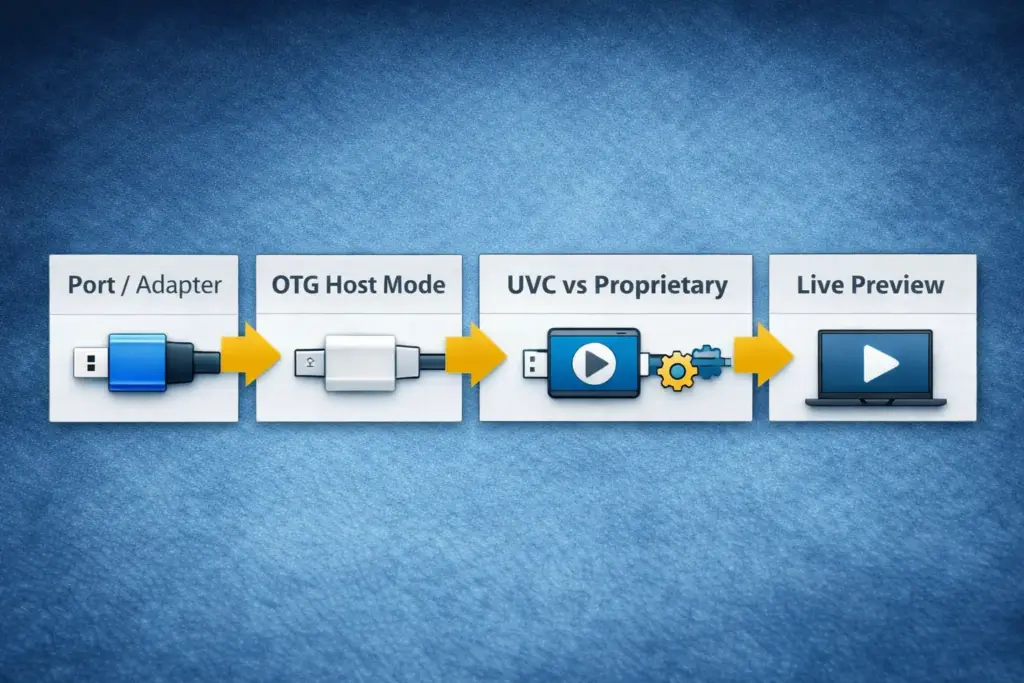
Mini table: OTG vs UVC (what each one controls)
| Term | What it controls (in plain English) | What it looks like when missing |
|---|---|---|
| OTG (USB host) | Whether your phone/tablet can “host” a USB device and talk to it | No detection, no permission prompt, no power, nothing happens |
| UVC (USB Video Class) | Whether the camera behaves like a standard USB webcam | Detected but no image in generic apps, or only works in one specific app |
Verification (OTG/UVC) before you troubleshoot
Before you spend time on settings or returns, you can usually confirm the root issue in under a minute. The goal is to learn whether the device can host USB and whether the camera behaves like a webcam-style video device.
Fast verification (Android + PC baseline)
- Start with the simplest physical path: plug directly into the phone/tablet (or a known-good adapter), avoid hubs at first.
- Check for a USB prompt (Android): permission to access a USB device / accessory. If you see it, OTG is likely working.
- Try a baseline test on a PC (Windows/macOS) if you can: many UVC devices show up like a webcam. If it works on PC but not on your phone, the problem is often phone OTG/app/adapter rather than the camera itself. (Android’s support for external USB cameras depends on device and implementation.) Android external USB camera overview
How to interpret results
- Nothing happens anywhere: suspect a bad cable/connector, power issue, or a defective unit.
- Works on PC, not on Android: suspect OTG setting, permissions, or app compatibility on that specific phone model.
- Detected but black screen: often a UVC/app mismatch or a proprietary stream that needs the vendor app.
Specs that actually matter for inspections (stop chasing “HD”)
After compatibility, the bigger reason people get disappointed is job mismatch: the camera can technically work, but the diameter, cable control, lighting, and focus behavior don’t match the space you’re inspecting. “HD/1080P/2K” labels rarely tell you that.
Key points:
- Access first: if the camera head can’t fit, resolution doesn’t matter.
- Control beats megapixels: a semi-rigid cable you can steer is often more valuable than a higher headline resolution.
- Light + focus dominate perceived clarity in dark cavities—more than the spec label on a listing.
Decision table: job constraint → spec to check → why it matters
| Your constraint | Spec to check | Why it matters in real use |
|---|---|---|
| Small opening / tight bend | Camera head diameter | Determines whether you can physically enter the space and maneuver |
| Long reach needed | Cable length (and quality) | Too short ends the job; too long can reduce control and stability |
| Need to steer around corners | Cable rigidity (semi-rigid vs flexible) | Semi-rigid cables are easier to guide; fully flexible cables can “bunch up” |
| Dark cavity | LED illumination + brightness control | Prevents blown-out highlights and improves usable detail |
| Close-up inspection | Focus distance behavior | Many endoscopes have a “sweet spot”; too close can be blurry |
| Wet/dirty environment | IP rating scope + connector protection | “Waterproof” often applies to the camera head, not the connector/adapters |
| Need side views | Single vs dual lens (if offered) | Dual-lens can help, but adds complexity and doesn’t fix compatibility issues |
Common spec traps (what “HD/1080P/2K” doesn’t tell you)
- Two cameras with the same “1080P” label can look wildly different in low light because LED control, optics, and focus distance differ.
- A higher resolution doesn’t help if you can’t stabilize the cable or if the camera fogs/condenses.
- “Waterproof” on a listing may refer to the probe head; the connector and adapter junction is often the real weak point.
Setup steps (Android, iPhone/iPad, Windows, macOS)
If your camera is compatible, setup is usually straightforward, but each platform has a different “gotcha.” Follow the steps for your device, and if you don’t get a live preview, jump to the troubleshooting matrix in the next section.
Android setup (OTG + permissions + app)
Android is often the easiest path if OTG and the app layer cooperate.
- Plug in with a direct adapter (avoid hubs first).
- If prompted, allow USB access for your viewer app.
- Enable OTG if your device has a setting (some do, some don’t).
- Try a UVC-capable viewer app (as examples to try, not guarantees).
- If you see a device but no image, try a second app to isolate app-specific issues.
Background reading on Android USB hosting: Android USB docs
iPhone/iPad setup (adapters + power + app)
On iPhone/iPad, “plug-and-play” often depends on the adapter path and sometimes external power.
- Use a data-capable camera adapter (not a charge-only dongle).
- If the adapter supports it, connect power passthrough (helpful if the camera draws more power than the device provides).
- Use an app that supports USB camera input on iOS/iPadOS (availability and compatibility vary).
- If nothing appears, try a different adapter (many failures are adapter-related).
Reference for the adapter concept: Apple Lightning to USB 3 Camera Adapter
Windows & macOS setup (UVC/webcam path)
A PC is often the cleanest baseline test because many UVC devices behave like webcams.
- Plug the endoscope into a direct USB port (avoid long hubs at first).
- Check whether it appears as a camera/webcam device.
- Try the default camera app first; if it’s detected but not visible, try another viewer app.
- If it works on PC but not on your phone/tablet, focus troubleshooting on OTG/app/adapter, not on the probe.
Android’s external USB camera behavior overview (useful context): Android external USB camera
Not detected or black screen? Use this symptom → cause → fastest fix matrix
Most endoscope camera failures fall into a small set of patterns. Use the symptom you see to pick the quickest fix, and avoid changing five variables at once.
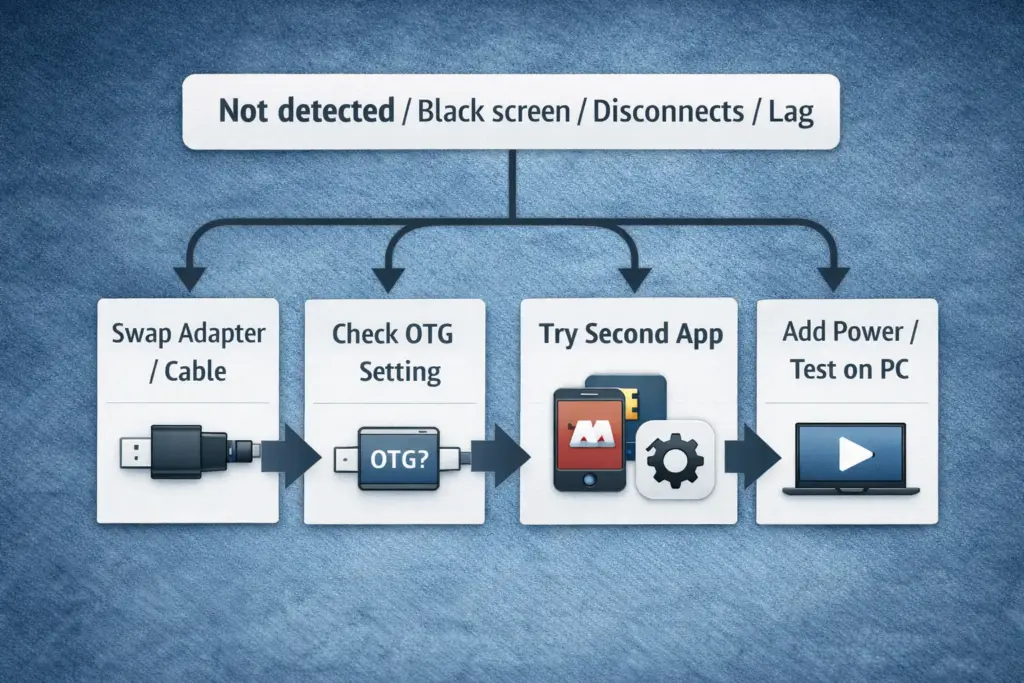
Matrix table: symptom | likely cause | fastest fix
| Symptom | Likely cause | Fastest fix to try first |
|---|---|---|
| Nothing happens (no prompt, no device) | No OTG/host mode, bad adapter, no power | Try a different OTG-capable adapter; test on a PC; try another phone that supports OTG |
| Device is detected, but black screen | App doesn’t support the stream, UVC mismatch, proprietary camera | Try a second viewer app; test on a PC; if it only works in one vendor app, treat it as proprietary |
| Works for a moment then disconnects | Power instability, weak adapter, cable movement stress | Use a better adapter; remove hubs; keep cable still; add external power (if adapter supports it) |
| Image is laggy / stutters | App performance, phone CPU load, unstable connection | Close other apps; lower preview settings (if available); test on PC; shorten the connection path |
| Image is blurry up close | Focus distance mismatch, dirty lens, condensation | Clean and dry the lens; adjust distance slowly; let temperature equalize to reduce fog |
| Overexposed glare | LEDs too bright, reflective surface | Reduce LED brightness if possible; adjust angle; increase distance slightly |
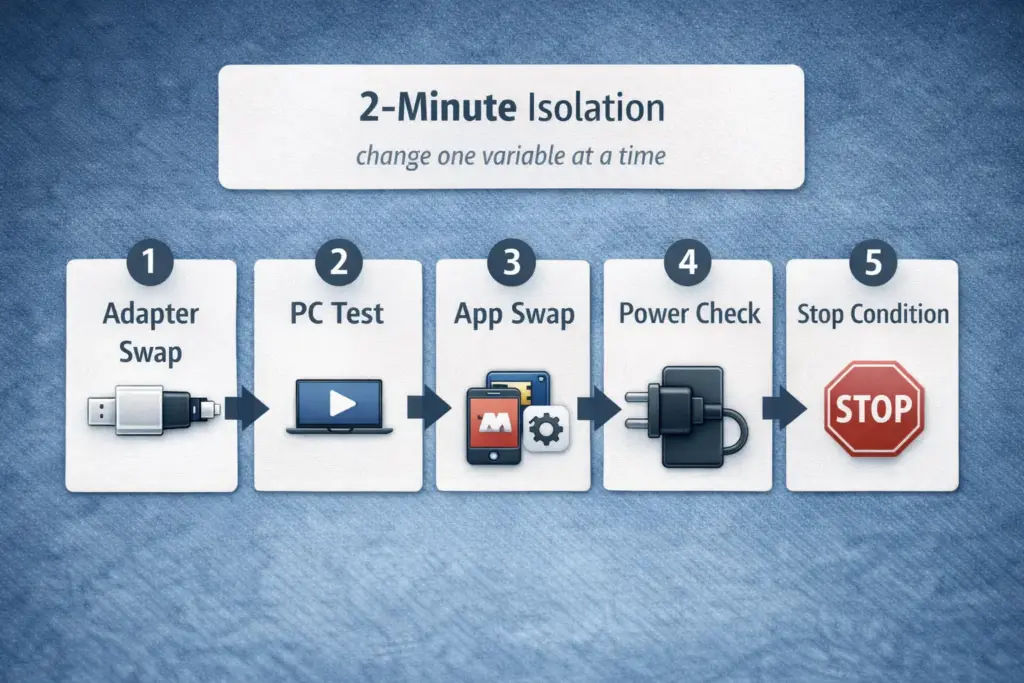
2 minute isolation flow (the fastest way to find the root cause)
If you want a linear procedure, this ordering finds the culprit fastest:
- Swap one thing only: try a different adapter/cable path (no hubs).
- Baseline on a PC: if it works as a webcam on PC, the probe is likely okay.
- Swap the app: try a second viewer app to isolate “app problem” vs “device problem.”
- Address power: if you have an adapter with power passthrough, provide power and retest.
- Stop conditions: if it fails on multiple devices and on a PC with known-good cables, treat it as incompatible or defective rather than endlessly tweaking settings.
IP67/IP68 waterproof ratings: what they cover and what they don’t
An IP rating can help you compare products, but it’s easy to over-interpret. In practice, IP ratings describe performance under specific test conditions, and the weakest point is often the connector and adapter junction, not the camera head. IEC overview of IP ratings
What an IP rating is useful for
- A standardized way to describe ingress protection under defined conditions. IEC overview of IP ratings
Common real-world boundaries to remember
- “Waterproof” marketing often refers to the probe head, not the whole assembly.
- Adapters, joints, and seals can be compromised by wear, bending, or grit.
- Hot-to-cold transitions can cause condensation/fogging that looks like “bad camera quality.”
Do/don’t checklist (risk reduction)
- Do keep connectors and adapters dry unless they are explicitly rated for the same environment.
- Do dry and clean the probe after use; inspect for damage.
- Don’t assume a rating covers deep or prolonged immersion unless the seller provides clear test scope.
- Don’t use a damaged seal/cable in wet environments.
Alternatives by pain point (access, compatibility, stability)
If a specific plug-and-play endoscope camera isn’t meeting your needs, you don’t need a giant product roundup—you need a targeted change.
- Access problem (won’t fit / can’t turn): prioritize a smaller head diameter and a more controllable (often semi-rigid) cable.
- Compatibility problem (won’t show video): look for devices that clearly support UVC/webcam behavior, and plan to test with a PC baseline early.
- Stability problem (disconnects/lag): shorten the connection path, use higher-quality adapters, and avoid hubs; if you need long reach in a professional workflow, consider a different interface class rather than pushing a phone setup beyond its comfort zone.
- Need side viewing: dual-lens can help, but it’s not a substitute for a stable connection chain.
When you need an OEM endoscope camera module (instead of a finished tool)
If you’re doing repeat deployments, building an inspection device, or integrating a camera into equipment, a finished plug-and-play borescope can become a bottleneck. In those cases, an OEM endoscope camera module may be the better fit because you can control mechanics, optics, interface, and long-term supply planning.
Choose an OEM module when you need things a consumer tool can’t reliably provide
- A specific diameter, housing shape, or mounting that must fit your enclosure
- A defined lens/FOV and focus behavior for repeatable inspection results
- A known cable routing and strain relief for production reliability
- A specific interface (USB, MIPI, or other) aligned to your host platform and cable length constraints
- A validation and QC approach that supports scale (instead of “try another app”)
OEM requirements checklist (what to specify before requesting samples/quotes)
To get meaningful recommendations (and avoid slow back-and-forth), prepare:
- Your host platform (phone/tablet/PC/embedded board) and the interface you can support (USB/MIPI, etc.)
- Mechanical constraints: maximum camera head diameter, housing dimensions, cable exit direction
- Working distance: your typical inspection distance and desired field of view
- Environment: dry/wet, temperature range, cleaning method
- Usage model: handheld tool vs integrated machine, expected duty cycle
- Output needs: preview only vs recording, latency tolerance, lighting control needs
- Volume expectations (rough range is fine if you’re early)
If you’re evaluating an OEM route (not just a one-off tool), share your host platform, mechanical constraints, and environment requirements with your camera module supplier so they can propose a realistic module + validation plan.
To wrap up, the FAQ below answers the most common “last-mile” questions people ask before buying or troubleshooting.
FAQ
- Q: Will a plug-and-play endoscope camera work on my Android phone, iPhone/iPad, or PC without extra hardware?
A: Sometimes—but only if your device can complete the chain of adapter/port → OTG (Android) → UVC/app support → power. Android often needs OTG and a compatible viewer app, iPhone/iPad often needs the right data-capable adapter (sometimes with power passthrough), and PCs are often the easiest baseline for UVC-style devices. - Q: What do OTG and UVC mean for endoscope cameras, and how can I verify support?
A: OTG means your phone can act as a USB host, and UVC means the camera behaves like a standard USB webcam. Verify by checking for a USB permission prompt on Android and testing the camera on a PC; if it appears like a webcam, it’s likely UVC-compatible. Android external USB cameras USB-IF UVC document library - Q: Which endoscope camera specs matter most for real inspections (diameter, cable, LEDs, focus, waterproof rating)?
A: Start with diameter and cable controllability, then look at LED control and focus behavior, and treat IP ratings as boundaries rather than guarantees. “HD/2K” labels are less predictive than whether the probe fits, can be steered, and can light the target area without glare. - Q: How do I connect, preview, and record with a USB endoscope camera on Android, iPhone/iPad, Windows, and macOS?
A: Use a direct connection path first, accept USB permissions on Android, use a data-capable adapter on iPhone/iPad, and test on a PC to confirm the video path. If preview works but recording doesn’t, try a second viewer app/software because app behavior varies across devices and OS versions. - Q: Why is my endoscope camera not detected or showing a black screen, and what are the fastest fixes?
A: Most failures are OTG/host-mode issues, weak adapters/power, or app/UVC mismatch. Swap to a known-good adapter, test on a PC baseline, and try a second viewer app; if it fails across multiple devices and a PC, treat it as incompatible or defective rather than endlessly changing settings. - Q: What does an IP67/IP68 rating mean in practice for endoscope cameras used in drains/pipes, and what are the safe boundaries?
A: IP ratings describe ingress protection under defined test conditions, and real-world results depend on connectors, seals, and wear. Keep connectors/adapters dry unless explicitly rated, clean/dry after use, and avoid assuming prolonged immersion is safe without clear scope from the seller. IEC overview of IP ratings
Summary: The safest way to buy, test, and use a plug-and-play endoscope camera
A plug-and-play endoscope camera is easiest when you treat it like a system: connection chain first, job fit second, troubleshooting only when needed.
Key takeaways
- Validate the compatibility chain (adapter/port → OTG → UVC/app support → power) before judging image quality.
- Choose specs by constraints: diameter + cable control + lighting + focus usually matter more than marketing resolution labels.
- Use a PC baseline test to separate “camera problem” from “phone/app/adapter problem.”
- Treat IP ratings as boundaries, and protect the connector/adapter junction.
Practical next steps (by scenario)
- If you’re a DIY user: run the checklist, verify on a PC if possible, and use the troubleshooting matrix before returning the unit.
- If you’re a technician: standardize your adapter/app/test routine so your team doesn’t lose time on avoidable setup failures.
- If you’re building a product: define mechanical constraints, interface, environment, and validation needs early—then evaluate an OEM module path.
If your requirements go beyond a one-off inspection tool—especially around mechanical integration, repeatability, or deployment scale—prepare the OEM checklist (host platform, constraints, environment) before requesting samples.