What “Best for iPhone” Usually Means (and the safest first choice)
The “best” iPhone endoscope is the one that matches your iPhone’s port and has a connection + app workflow you can verify before you buy. If you want the lowest surprise factor, prioritize clear iOS support (named app) and a solid return policy over flashy spec numbers.
| If you want… | Usually the safer pick | What to watch for |
|---|---|---|
| The simplest “works on most iPhones” path | Wi-Fi endoscope with a named iOS app | Pairing steps, battery limits, Wi-Fi dropouts |
| Fewer pairing steps | Wired (Lightning or USB-C) only when iOS support is explicit | “Plug fits” can still fail without the right app/workflow |
| Tight spaces | Smaller probe diameter + good lighting control | Small probes may trade durability |
Key points
- Buy “workflow-first”: Which app? Which steps? Which iPhone connector?
- Treat “iOS compatible” and “IP67/IP68” as claims unless the seller explains scope and test conditions.
- Use the return policy as a safety net when compatibility details are vague.
Quick “verify before you buy” checks
- The listing names an iOS app you can find in the App Store (not “scan a QR code to download”).
- It states which connector it’s meant for (Lightning vs USB-C) or that it’s Wi-Fi-based.
- It explains how you view video (vendor app + pairing/plug-in steps).
Boundary conditions
- “Best” depends on your iPhone model/port, your inspection environment, and the vendor’s app support.
- No checklist eliminates risk; it only reduces it.
Know Your iPhone Port: Lightning vs USB-C (what changes, what doesn’t)
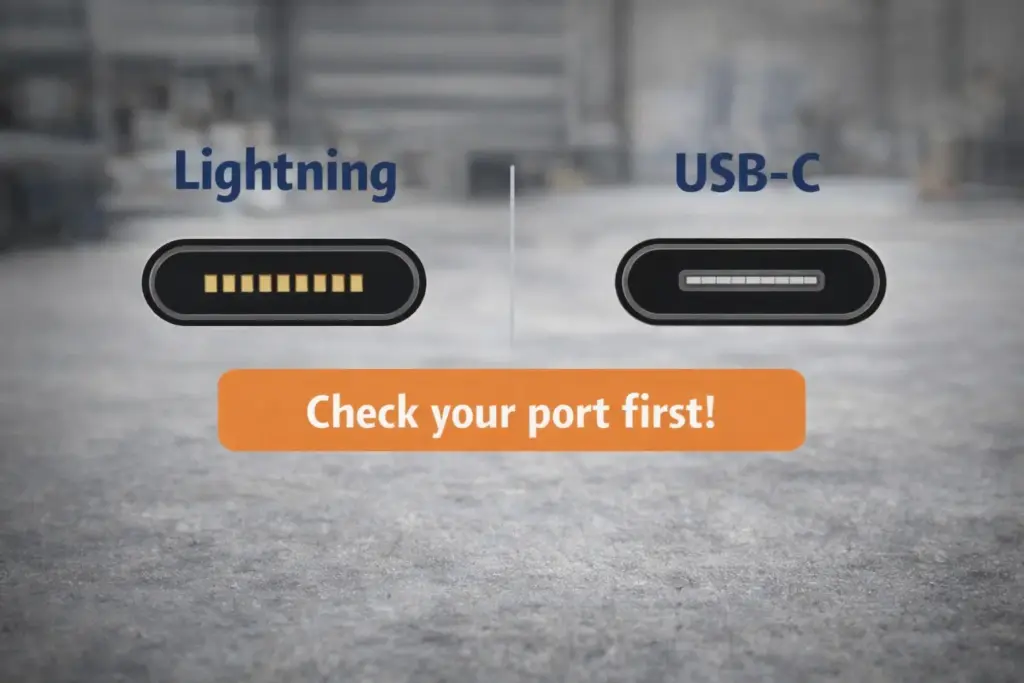
Your iPhone’s port determines which wired endoscope options are possible, but it doesn’t guarantee a wired camera will work. Apple moved iPhone to USB-C starting with iPhone 15, while many earlier models use Lightning. Apple support: Charge and connect with USB-C on iPhone 15 and later
Key points
- Lightning iPhones: wired endoscopes marketed “for iPhone/iOS” still need explicit iOS workflow/app support.
- USB-C iPhones (iPhone 15 and later): more accessories can plug in, yet some endoscopes remain Android/PC-only despite having a USB-C plug.
- Adapters are variables, not guarantees: they can introduce power and compatibility constraints, so rely on the vendor’s stated iOS workflow first.
Boundary conditions
- Port type tells you what can plug in; compatibility depends on whether the device’s video workflow is supported on iOS.
- When a listing is vague about iOS setup, shop more conservatively (Wi-Fi option or easy returns).
Compatibility Decision: Lightning vs USB-C vs Wi-Fi (quick trade-off table)
If you want your endoscope to “actually work” on iPhone, the most important decision is how the video reaches your phone: wired via Lightning/USB-C, or wirelessly via Wi-Fi. Wi-Fi models often avoid port-specific friction, while wired models can be great when iOS support is clearly documented.
| Connection type | Compatibility confidence (when shopping) | Setup friction | Common failure points |
|---|---|---|---|
| Lightning (wired) | Medium (only when listing is explicit) | Low | Vague “iOS compatible”; wrong app/workflow; power/adapter issues |
| USB-C (wired) | Medium (only when listing is explicit) | Low | Plug fits but workflow isn’t iOS-supported; device is Android/PC-only |
| Wi-Fi (wireless) | Medium–High (more iPhone-agnostic) | Medium | SSID pairing confusion; dropouts; app stability issues |
Key points
- Don’t buy “connector-first.” Buy “workflow-first”: Which app? Which steps? Which iPhone models?
- Prefer listings that state iOS version support, show the app name, and describe the connection steps.
- If the listing can’t pass a basic workflow sanity check, treat it as higher risk.
Boundary conditions
- No connection type is a 100% guarantee—vendor app quality and documentation still matter.
- Wi-Fi reduces connector dependence but adds pairing steps and can be affected by your environment.
When Wi-Fi is the safer choice (and what you trade for it)
Wi-Fi endoscopes are often the safer shopping choice when you have mixed iPhone models or unclear connector claims, because compatibility is less tied to the physical port. The trade-off is more setup steps and occasional wireless instability.
Key points
- You typically connect to the endoscope’s Wi-Fi network (SSID), then view video inside the app.
- Wi-Fi is often easier to share across different phones, but you may lose normal internet while connected.
- In busy RF environments (garages, apartments), expect occasional dropouts and plan for patience.
Boundary conditions
- Wi-Fi performance depends on the device’s hotspot quality and your environment.
- App quality is part of compatibility—an outdated app can ruin an otherwise decent probe.
If you prefer fewer pairing steps, wired can still be a great choice when iOS support is clearly stated.
When wired makes sense (and why it still fails sometimes)
Wired endoscopes can feel smoother because there’s no wireless pairing, but they fail most often when buyers assume “the plug fits” means “iPhone supported.” Treat a wired option as low-risk only when the listing is explicit about iOS workflow and app support.
Key points
- Look for a named iOS app (or clear iOS instructions) rather than generic “works with iOS” text.
- Be skeptical of listings that emphasize “USB-C” but don’t mention iPhone models, iOS versions, or an app.
- If an adapter is required, confirm the vendor supports that exact setup path.
Boundary conditions
- Some wired endoscopes are designed for Android/PC and won’t display video on iOS even with the “right” connector.
- Vendor instructions should override generic setup tips.
Wired vs Wi-Fi: Stability, lag, setup friction, and return-risk
Wired and Wi-Fi endoscopes can both work well on iPhone, but they optimize different pain points: wired tends to reduce pairing friction, while Wi-Fi tends to reduce connector-specific uncertainty. Use this comparison to match the option to your priorities.
| Factor | Wired (Lightning/USB-C) | Wi-Fi |
|---|---|---|
| Setup time | Usually faster | Usually slower (pairing + app) |
| Stability | Often steady if compatible | Can drop/freeze in some environments |
| Lag | Usually lower | Can be higher (depends on device/app) |
| Shopping risk (will it work?) | Higher if listing is vague | Often lower if workflow is clear |
| Power | May depend on phone/adapter | Often has its own battery |
| Best for | Quick checks when iOS support is explicit | Mixed iPhone fleets, vague listings, longer inspections |
Key points
- Wired “wins” when iOS support is real and documented—not implied by the connector.
- Wi-Fi “wins” when the app is stable and you can keep your phone connected to the device SSID.
- If you’re unsure, let the documentation quality + return policy decide.
Boundary conditions
- Wired success still depends on the vendor’s iOS workflow/app support.
- Wi-Fi success still depends on environment and hotspot/app quality.
Specs That Actually Matter (fit, handling, visibility, durability claims)
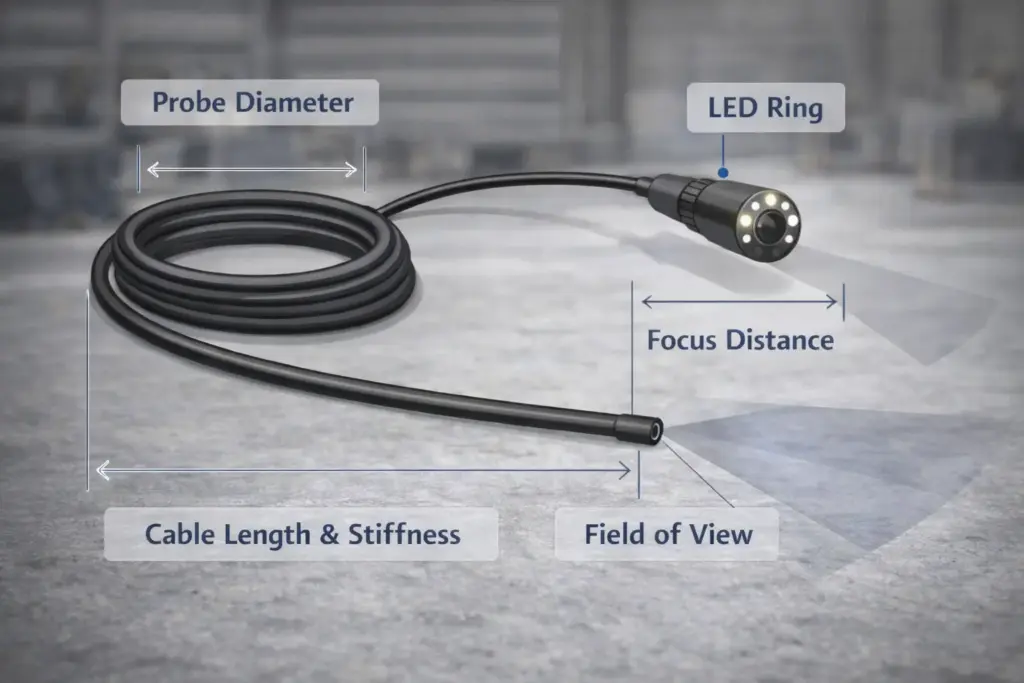
For iPhone endoscopes, the best specs aren’t the biggest resolution number—they’re the specs that let you reach the area, steer the probe, and see clearly. Prioritize fit and visibility first, then treat durability claims (like IP ratings) as risk signals rather than guarantees.
Prioritize these specs (in order)
- Probe diameter: determines where it fits (tight cavities vs open spaces).
- Cable length + stiffness: affects reach and controllability; longer isn’t always better.
- Lighting control: adjustable LEDs reduce glare on reflective metal or wet surfaces.
- Focus distance / close-focus behavior: inspections happen inches away; poor close-focus looks blurry regardless of resolution.
- Field of view (FOV): too wide distorts; too narrow feels like a tunnel—balance depends on your task.
- Water resistance claims (IP ratings): useful concepts, but only meaningful with clear testing scope. RS Components: IP ratings overview
| Use case | What to prioritize most | Why |
|---|---|---|
| Tight mechanical spaces | Smaller diameter + close-focus + lighting control | Fit and clarity up close matter more than “max pixels” |
| Long reach inspections | Cable stiffness + stable video path | Reach is useless if you can’t steer or the video drops |
| Wet/dirty environments | Durability signals + strain relief + return policy | Marketing labels vary; risk-control matters |
Boundary conditions
- Spec priorities change with the inspection path (straight vs bends), surface reflectivity, and moisture.
- Treat IP67/IP68 as a concept unless the vendor explains test conditions and limitations.
Fit & handling: diameter, length, stiffness (what’s controllable)
Fit and handling decide whether the endoscope is usable in the first place. A long cable that constantly flops or kinks can be harder to use than a shorter, stiffer one.
Key points
- Choose the smallest diameter that still feels durable for your environment.
- For longer reaches, prioritize semi-rigid cables and accessories that help guide the head.
- If you frequently turn corners, consider how the cable behaves when pushed (buckling is common).
Boundary conditions
- “Controllable length” depends on your route and how many bends you need to navigate.
- Build quality varies; use warranty/returns as a practical safety net.
Visibility: lighting, focus distance, and FOV (why “more pixels” often loses)
A higher advertised resolution won’t help if the view is washed out by glare or too blurry up close. In real inspections, adjustable lighting and predictable close-focus often matter more.
Key points
- Look for adjustable LED brightness to manage glare on reflective surfaces.
- Close-focus matters for small defects; if the lens can’t focus nearby, details disappear.
- A balanced FOV helps you orient without extreme distortion.
Boundary conditions
- Very wet or shiny surfaces can cause glare regardless of resolution; lighting control is your lever.
- Usability can vary by app (exposure/brightness controls), not just probe hardware.
Durability claims: “waterproof/IP” and strain relief (how to interpret safely)
IP ratings describe ingress protection concepts, but product listings don’t always tell you how the device was tested or what parts are protected. Treat durability claims as a risk signal, then verify with details and return policy.
Key points
- Prefer listings that state what is rated (probe head vs entire cable) and what conditions are assumed.
- Strain relief at the camera head/cable junction is a common failure point—look for build details and photos.
- If the listing is vague, assume the rating is limited and avoid high-risk environments.
Boundary conditions
- IP concepts don’t automatically transfer to every product’s real-world durability; testing conditions matter. RS Components: IP ratings overview
- When in doubt, treat “waterproof” as “splash-resistant unless proven otherwise.”
Match Specs to Your Job: Automotive vs Plumbing vs General DIY
The best iPhone endoscope for a job is the one optimized for that environment’s constraints. Use these buckets as a starting point, then adjust based on your access path.
Automotive (engine bay, underbody, tight gaps)
- Prioritize: smaller diameter, strong lighting control, stable video (wired or solid Wi-Fi).
- Helpful accessories: mirror for angled viewing, magnet/hook for retrieval.
Plumbing/drains (wet, dirty, long runs)
- Prioritize: durability signals, cable length + stiffness, and a reliable return policy in case waterproof claims disappoint.
- Helpful accessories: hook for debris; consider a dedicated-screen borescope if you want fewer phone steps.
General DIY (walls, vents, appliances)
- Prioritize: ease of setup, good close-focus, and enough lighting to see texture and cracks.
- Helpful accessories: mirror for corners; short-to-medium length often handles better.
Boundary conditions
- Cable length needs vary more than most listings admit; your “right length” depends on bends and access points.
- If you’ll use it weekly, durability and workflow often matter more than headline specs.
Apps & Privacy: app quality is part of compatibility
For many endoscopes, the app isn’t optional—it’s the video viewer, recorder, and sometimes the only way the device works. The best choice is the one with an app that looks maintained, asks for reasonable permissions, and matches the device’s documented workflow. Apple developer: App Privacy Details
Key points
- A named App Store app + clear pairing/plug-in steps are strong compatibility signals.
- Permission requests should match features (viewing vs recording); unrelated requests are red flags.
- If the app feels abandoned, shop more conservatively (better-documented option or easy returns).
Boundary conditions
- Privacy labels are developer-provided signals, not a guarantee of perfect behavior. Apple privacy overview
- Some apps rely on local Wi-Fi networks and may behave differently when your phone switches networks.
App trust checklist (before you buy)
A named, searchable App Store listing is one of the strongest compatibility signals you can get before purchase. If the seller can’t tell you which iOS app you need, treat that as a risk flag.
Checklist
- The listing clearly names the iOS app and links to the App Store page.
- The app has recent updates (a sign it’s maintained across iOS changes).
- Reviews mention your iPhone generation (older Lightning vs newer USB-C models).
- The seller provides a support contact and a basic setup guide.
Boundary conditions
- A maintained app reduces risk but doesn’t guarantee your specific device will behave perfectly.
- Some vendors use private apps or re-skinned apps; prefer transparency and documentation.
Permission sanity checks (normal vs suspicious)
Most endoscope apps need network access for streaming and media access to save videos, but they shouldn’t need unrelated personal data. Treat permissions as a “match the feature” test.
Key points
- Grant the minimum required permissions to view video first; add more only if you need recording features.
- You can review what an app accesses over time using iOS privacy tools. Apple support: App Privacy Report
- If an app requests unrelated access (contacts, tracking) without a clear feature reason, consider a different product.
Boundary conditions
- Some permissions can be changed later in iOS Settings; you’re not locked into a one-time decision.
- Vendor instructions may mention specific permission steps—follow them when they’re consistent with iOS settings.
Verify Before You Buy: Product-page checklist + red flags
Most disappointment comes from vague listings, not from the idea of an iPhone endoscope itself. Use the checklist below to make sure the seller’s claims are specific enough to trust.
Key points
- Specific compatibility details (connector + app name + steps) reduce mismatch risk.
- When information is missing, your best protection is a better-documented listing or an easier return policy.
Boundary conditions
- Even detailed listings can be wrong; treat verification as risk reduction, not elimination.
- Marketplaces and resellers vary in accuracy; cross-check vendor docs when possible.
Compatibility checklist (what must be explicitly stated)
An iPhone endoscope listing should be able to answer “How does it connect, and which app do I use?” without ambiguity. If it can’t, treat it as higher risk.
Checklist
- Which iPhone connector is supported (Lightning vs USB-C) or that it’s Wi-Fi-based.
- The exact iOS app name and where to get it (preferably App Store).
- iOS version support (at least in a general range) and any model exclusions.
- A clear setup description: “power on → join SSID → open app” (Wi-Fi) or “plug in → open app” (wired).
- What accessories are included (mirrors, hooks, adapters) and what each is for.
Boundary conditions
- Some sellers copy-and-paste specs; look for consistency across text, photos, and instructions.
- If the seller can’t name the iOS app, assume more troubleshooting risk later.
Red flags that predict returns
Red flags don’t prove a product won’t work, but they raise the odds of mismatch or frustration. Use them to decide whether to keep shopping.
Common red flags
- “Works with all iOS/iPhone” with no app name, no model list, and no setup steps.
- Connector ambiguity (photos don’t match the described Lightning/USB-C text).
- Waterproof claims with no mention of which parts are rated or how it’s used.
- No meaningful return policy, or unclear support instructions.
Boundary conditions
- A few red flags may be acceptable if the seller has a strong return policy and clear documentation elsewhere.
- When in doubt, choose the better-documented option—even if specs look similar.
Setup: get a Wi-Fi endoscope working on iPhone (steps)
Most Wi-Fi endoscope setups follow the same pattern: power the device, connect to its Wi-Fi network, then view video in the app. Follow these steps to reduce “black screen” problems caused by pairing order mistakes.
- Charge or power the endoscope and turn it on.
- Install the vendor’s recommended iOS app (from the App Store when possible).
- On your iPhone, go to Settings → Wi-Fi and join the endoscope’s Wi-Fi network (SSID).
- Return to the app and wait for the live view to appear; grant only necessary permissions.
- Adjust LED brightness and let the camera settle at close focus before judging sharpness.
- If your iPhone keeps switching away from the endoscope Wi-Fi, enable Airplane Mode and then turn Wi-Fi back on (so it stays on the device network).
Boundary conditions
- Exact steps vary by vendor; if their official steps differ, follow the vendor workflow.
- While connected to the endoscope SSID, your phone may show “No Internet”—that’s normal for many device hotspots.
Troubleshooting: black screen / no signal (Wi-Fi vs wired split flow)
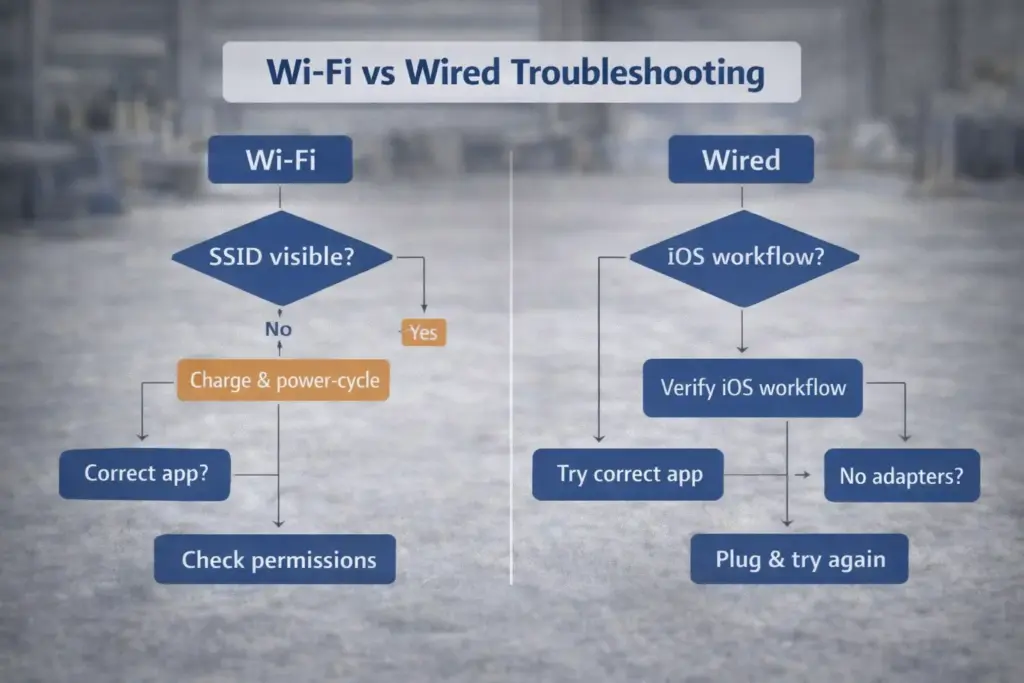
A black screen usually means a workflow mismatch: wrong network, wrong app, missing permission, or a device that isn’t actually iOS-supported. Start by identifying whether your device is Wi-Fi-based or wired, then follow the corresponding path.
Fast symptom map
| Symptom | Most likely cause | What to try first |
|---|---|---|
| Endoscope Wi-Fi network (SSID) never appears | Device not powered/charged; too far; defective hotspot | Charge fully, power-cycle, move closer |
| SSID appears, but app shows black screen | Wrong app; missing permissions; not actually on SSID | Confirm iPhone is on SSID, open vendor app, check permissions |
| Video appears then freezes/drops | Weak hotspot; interference; app instability | Reduce distance, retry, close/reopen app, power-cycle |
| Wired device shows “not supported” | Android/PC-only workflow; wrong adapter path | Verify iOS support signals and app name; follow vendor steps |
Key points
- Split the problem first: Wi-Fi model vs wired model, because the failure modes differ.
- Most “no signal” cases are setup/workflow issues, not hardware defects.
- Document what you tried so you don’t repeat the same mismatch.
Boundary conditions
- Some issues are app-specific and only resolvable via updates.
- Vendor instructions override generic steps when they’re clear and consistent with iOS settings.
If it’s a Wi-Fi model: diagnose SSID, pairing, and app stream
For Wi-Fi endoscopes, “connected” doesn’t always mean “streaming.” Your goal is: iPhone on the device SSID → correct app open → permissions ok → live view running.
Steps
- Confirm your iPhone is connected to the endoscope SSID (not home/office Wi-Fi).
- Force-close and reopen the app; make sure it’s the vendor-recommended app.
- Check iOS permissions (network/local access, photos if recording), then retry live view.
- If the iPhone keeps switching networks, use Airplane Mode + Wi-Fi to stay on the SSID.
- Power-cycle the endoscope (many issues are battery/hotspot related).
Boundary conditions
- Some devices require a specific vendor app; generic “endoscope viewer” apps may not work.
- If the SSID never appears after charging and power-cycling, it may be a hardware fault.
If it’s wired: confirm workflow support (not just the connector)
Wired failures on iPhone are commonly caused by a mismatch between the device’s intended platform and the buyer’s assumption. Verify the listing’s iOS workflow signals before concluding the device is defective.
Steps
- Re-check the listing and any included guide for explicit iOS support and the correct app/workflow.
- If an adapter is required, confirm the vendor supports that exact adapter chain.
- Try the vendor app first; generic apps may not match your device.
- If it still fails and the listing is vague, treat it as a likely compatibility mismatch rather than a defect.
Boundary conditions
- Some wired endoscopes are made for Android/PC and won’t display video on iOS even if the plug fits.
- If the vendor can’t name the iOS app or steps, the risk of mismatch is high.
Before you return it: quick checklist to confirm it’s not a setup mismatch
Before returning or replacing the device, capture the details that determine whether this was a defect or a compatibility mismatch.
Checklist
- Screenshot the listing’s compatibility claims (connector, iOS version, app name).
- Note the exact steps you tried (SSID connected, app used, permissions granted, power-cycles).
- If the app looks outdated or reviews mention recent iOS issues, consider exchanging for a better-documented option.
- Verify your return window and repacking requirements.
Boundary conditions
- Return policies differ by seller; confirm timelines before extended troubleshooting.
- If a device can’t pass the vendor’s own stated workflow, it may be defective.
Safety Boundaries: consumer inspection vs medical use
Consumer phone endoscopes are generally designed for inspection tasks (pipes, engines, walls), not for diagnosing or treating medical conditions. If the intended use is clinical (diagnosis/treatment), consult a licensed professional and follow applicable regulations. FDA: How to determine if your product is a medical device
Do
- Use for household, automotive, HVAC, and structural inspection where you can control cleanliness and risk.
- Keep the probe clean and avoid cross-contamination in wet/dirty environments.
Don’t
- Use a consumer endoscope to self-diagnose medical conditions (ears, throat, internal exams).
- Assume “waterproof” claims imply safe sterilization or clinical hygiene suitability.
Boundary conditions
- Intended use matters in how products are regulated; when medical outcomes are involved, treat it as a professional domain.
- If you’re unsure about a health concern, seek medical guidance rather than relying on consumer inspection tools.
Optional (B2B bridge): RFQ checklist for an iPhone-compatible inspection accessory
If you’re integrating an inspection camera into a product, “best” becomes a requirements problem: mechanical envelope, environment, lighting, and software workflow. A short RFQ checklist prevents most prototype-to-production surprises.
Key points
- Clear requirements reduce integration risk and speed up sampling and iteration.
- Qualitative constraints (space, environment, workflow) are more useful than vague “best image” requests.
Boundary conditions
- Feasibility and cost depend heavily on constraints; test early and iterate rather than assuming “one spec fits all.”
- Avoid locking in performance numbers before you have a test plan and environment definition.
RFQ checklist (what to send before asking for samples)
A useful RFQ makes it easy for a supplier to answer: “What can we build, how should we package it, and how do we validate it?”
Checklist
- Use case and environment (dry/wet, dust, oils, temperature range—qualitative is fine).
- Probe diameter target and maximum head length you can fit.
- Cable length and handling needs (semi-rigid vs flexible; bends/turns expected).
- Image goals (close-focus expectations, approximate working distance, FOV preference).
- Lighting constraints (LED placement, glare concerns, space for illumination).
- Enclosure expectations (what needs ingress protection, and how it will be cleaned).
- Platform workflow (wired vs Wi-Fi; app control expectations; recording needs).
Boundary conditions
- If you don’t know your constraints yet, start with a prototype target and refine after first samples.
- Documenting “must-have” vs “nice-to-have” helps prevent cost and schedule surprises.
FAQ
- Q: Which type of endoscope camera is most reliably compatible with iPhone (Lightning, USB-C, or Wi-Fi)? A: Wi-Fi models are often the safest shopping choice when listings are vague, but wired can be great when iOS support is explicitly documented. Always look for a named iOS app/workflow and a clear connector statement (Lightning vs USB-C) before buying.
- Q: Which is better for iPhone: a wired endoscope or a Wi-Fi endoscope? A: Wired is usually faster to set up and can feel smoother, while Wi-Fi is often less dependent on the iPhone’s connector type. The better choice depends on whether the listing clearly supports iOS and how much pairing friction you’re willing to accept.
- Q: What specs matter most when choosing an endoscope camera for iPhone? A: Probe diameter, cable handling (length/stiffness), lighting control, and close-focus behavior usually matter more than headline resolution. Choose specs based on your inspection path (tight spaces vs long reach vs wet environments) and treat durability ratings as risk signals, not guarantees.
- Q: Do I need a special app to use an endoscope camera on iPhone? A: Many iPhone endoscopes require a companion app to view and record video, especially Wi-Fi models. Prefer products that name a maintained App Store app, and be cautious if the seller can’t tell you which app you’ll need.
- Q: Why does my endoscope camera show a black screen or no signal on iPhone? A: The most common causes are being on the wrong Wi-Fi network, using the wrong app, missing permissions, or a wired device that isn’t truly iOS-supported. Start with the Wi-Fi vs wired split flow, then verify the vendor’s stated workflow and app.
- Q: What are common mistakes when buying an iPhone endoscope camera online? A: The biggest mistakes are trusting vague “works with iOS” claims, ignoring the app/workflow, and not checking whether the connector matches your iPhone (Lightning vs USB-C). Buying without a good return policy also increases risk if compatibility is misrepresented.
- Q: Are phone endoscope cameras safe for medical use (ears, throat, etc.)? A: Consumer phone endoscopes are not designed for diagnosis or treatment, and hygiene/sterilization needs are different for medical devices. If you have a medical concern, consult a licensed professional and follow applicable regulations rather than relying on consumer inspection tools.
Key Takeaways (one-page recap checklist)
If you follow a simple sequence—port → connection method → specs → verify → setup—you’ll avoid most iPhone endoscope failures. Use this recap as your shopping and setup checklist.
- Confirm your iPhone connector (Lightning vs USB-C).
- Choose a connection method:
- If the listing is vague, prefer Wi-Fi with a named iOS app.
- If going wired, require explicit iOS workflow support (not just “plug fits”).
- Prioritize specs that change usability: diameter, cable handling, lighting control, close-focus.
- Verify before buying: app name, iOS support notes, setup steps, included accessories, return policy.
- If you hit a black screen: identify Wi-Fi vs wired first, then follow the split troubleshooting flow.
Boundary conditions
- When information is vague, treat it as higher risk and prefer better-documented options.
- For repeated or professional use, prioritize workflow stability and durability over headline specs.
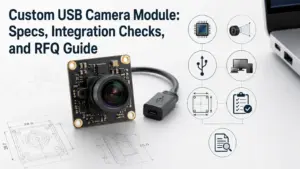
Need an OEM inspection camera module or a custom camera module for an embedded product? Use the RFQ checklist above and share your constraints so a supplier can advise feasible sensor/lens/illumination options without guesswork.